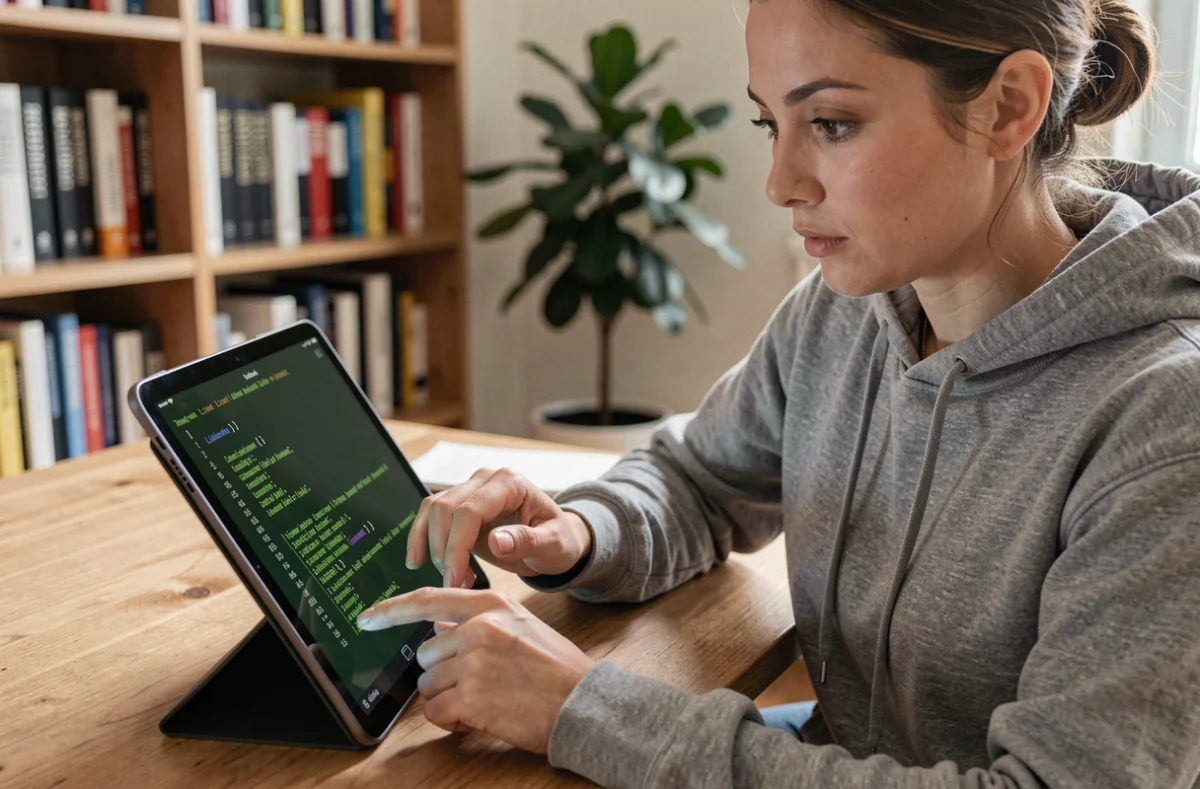
Installing Linux on a touchscreen tablet is not as simple as burning an ISO and waiting for everything to work. Compatibility must be checked component by component: touchscreen, auto-rotation, Wi-Fi, audio, camera, and sleep mode. Two tablets from the same manufacturer can produce completely different results with the same distribution. The goal, then, is not to find “the best Linux distribution for tablets,” but to understand which hardware factors determine whether the installation will succeed.
Linux tablet hardware compatibility: what works with each processor type
The first deciding factor is the processor architecture. A tablet with an Intel or AMD x86 processor can run most mainstream distributions (Ubuntu, Fedora, Debian, Linux Mint). An ARM tablet, like most Android models, has far fewer options.
| Component | x86 tablet (Intel/AMD) | ARM tablet (Android) |
|---|---|---|
| Booting from USB | Generally possible via UEFI | Rarely possible without unlocking |
| Touchscreen | Recognized by the Linux kernel in most cases | Depends on the manufacturer’s driver |
| Screen rotation | Works with GNOME; varies with KDE | Often unavailable or manual |
| Wi-Fi | Works if the chipset is supported | Often requires proprietary firmware |
| Audio | Can be unreliable (codec not recognized) | Frequently unavailable after installation |
| Camera | Rarely works | Almost never works |
| Sleep mode | Varies by model | Often unreliable |
This table highlights something that “best distribution” lists tend to overlook: the main obstacle is a manufacturer’s driver, not the choice of distribution. A Broadcom Wi-Fi chipset will cause the same problem on Ubuntu, Fedora, or Debian.
Before choosing a Linux distribution for a tablet, you need to identify the exact model of the processor, touchscreen controller, and network chipset. Without this information, any recommendation remains theoretical.

Linux distributions for touchscreen tablets: a comparison by desktop environment
Once hardware compatibility has been checked, the desktop environment determines the touchscreen experience. Not all distributions are equally well suited to this.
GNOME: the best fit for touchscreen tablets
GNOME includes a tablet mode with an on-screen keyboard and multitouch gestures. Apps open full-screen, the top bar remains easy to reach by touch, and screen rotation works without additional configuration on compatible x86 tablets. Ubuntu and Fedora Workstation use GNOME by default.
KDE Plasma: powerful, but designed for a mouse
KDE Plasma offers extensive customization, but its interface is still designed for a pointer. Close buttons, context menus, and the taskbar require a level of precision that is not always possible with a finger. Manual adjustments (icon size, spacing) are needed for a good touchscreen experience.
Cinnamon: familiar, but limited on touchscreens
Linux Mint with Cinnamon recreates the Windows experience, which can be reassuring for beginners. However, Cinnamon has no native tablet mode. There is no automatic on-screen keyboard or built-in touch gestures. On a tablet without a physical keyboard, the experience quickly becomes frustrating.
Ubuntu Touch and mobile distributions: an alternative to desktop systems
Desktop distributions installed on tablets are still a compromise. Ubuntu Touch takes a different approach: a system designed from the ground up for mobile devices.
Ubuntu Touch’s hardware support relies on Halium, a layer that reuses Android drivers and kernels. This architecture expands the number of compatible tablets, but it also means that support depends on the exact model and its Android software base.
The difference from a standard Fedora or Ubuntu installation is fundamental. Ubuntu Touch handles rotation, sleep mode, touch input, and the on-screen keyboard natively. In return, its app ecosystem is limited compared with a full GNOME desktop.
- Ubuntu Touch is a good fit for users who want a complete mobile system without using Android, provided their tablet is on the list of supported devices
- A desktop distribution (Ubuntu, Fedora) is a better fit for those who need traditional desktop apps and have an x86 tablet with a detachable keyboard
- Debian remains a good choice for older x86 tablets thanks to its lightweight design, but requires more manual configuration for touchscreen support

Test every feature before installing Linux on your tablet
Reports from projects such as gbOS86 reveal a recurring gap between “the installation starts” and “the tablet is usable every day.” A successful installation does not guarantee that sound, the camera, or suspend mode will work.
Here are the features to test systematically, in order of priority:
- Booting from a USB drive or SD card to check UEFI compatibility before installing anything
- Touchscreen responsiveness and multitouch support (zooming, two-finger scrolling)
- A stable Wi-Fi connection after reboot, indicating that the network firmware has loaded correctly
- Automatic screen rotation in portrait and landscape modes
- Sleep and wake without the system freezing
- Audio through the built-in speaker and headphone jack
A tablet without working Wi-Fi or touch input is not usable, no matter how elegant the GNOME desktop or how stable Debian is. Testing with a live USB before installation helps you avoid wiping a working Android system only to discover that a network driver is missing.
Choosing a Linux distribution for a touchscreen tablet depends less on the distribution’s name than on verified compatibility with each hardware component. On an x86 tablet, GNOME on Ubuntu or Fedora offers the best out-of-the-box touchscreen experience. On an ARM tablet, Ubuntu Touch is the only option genuinely designed for this use, provided the model is officially supported.